Tuesday, 30 September 2014

// // Leave a Comment

Samsung launches 'selfie phone' Galaxy Grand Prime at Rs 15,499

Samsung on Tuesday launched the Galaxy Grand Prime in India. The phone, which has a wide-angle 5-megapixel front camera, costs Rs 15,499. It is available in white and grey colours.
The key feature of the the Grand Prime is its front camera that has a 85-degree wide lens, which will help users fit in more people on their selfies or in other words capture better group selfies. The rear camera can shoot images in 8-megapixel.

Commenting on the launch, Asim Warsi, vice president (marketing mobile & IT) at Samsung India said, "The Galaxy Grand Prime features an advanced wide angle front camera best-suited to capture group images. With the launch of this power packed smartphone, we are further strengthening our Grand portfolio."
The phone has a 5-inch TFT screen with qHD (960 x 540 pixels) resolution, which seems rather low considering the size of the screen and the price of the phone. Most of the phones in this price bracket has a 720P screen.
In terms of core hardware, the Grand Prime has specifications that suit its credentials as a mid-range phone. It is powered by 1.2GHz quad core processor, 1GB RAM and 8 GB internal memory, which is expandable using a microSD card up to 64GB. The device uses Android KitKat aka Android 4.4 and Samsung's proprietary TouchWiz user interface. It has 2600mAH battery, that according to Samsung enables up to 10 hours of video playback and 17 hours of talk time.
Read More
// // Leave a Comment

Microsoft unveils first look at Windows 10

SAN FRANCISCO - Microsoft on Tuesday lifted the veil on the next version of Windows: Windows 10.

At an event in San Francisco focused on corporate users, Microsoft previewed early elements of the next generation of its iconic computer operating system.
It represents the first step in a whole new generation of Windows, said Microsoft executive Terry Myerson.
The company said it will focus on one Windows product family across devices. Its corporate users will find Windows 10 "familiar, compatible and productive," Myerson said.
Microsoft's Joe Belfiore gave a demo, focused on the core experience in how the PC "is evolving."
There are live tiles, familiar to Windows 8 users, but also elements familiar to Windows 7 users, which is far more widely deployed. The Start menu and taskbar are front and center.
Yes, the company is skipping the "Windows 9" moniker. Why skip "9"?
"When you see the product in its fullness I think you will agree with us that it is a more appropriate name," Myerson said.
Among other things, Belfiore said the company wants to focus on personalization, to make the Windows experience particular to individual users' tastes and preferences.
"We are trying to hit this balance in just the right way," Belfiore said.
Microsoft has been talking broadly about its Windows strategy for months. At its developer conference in April, CEO Satya Nadella and other Microsoft executives outlined ways in which it would make it easier for software developers to create applications that will work across all Microsoft devices – PCs, phones and tablets.
Ahead of the event, researcher Forrester said the pressure is on for Microsoft to address the needs of its business customers given the sluggish adoption of Windows 8.
"Only about 1 in 5 organizations is offering Windows 8 PCs to employees right now," Forrester analyst David Johnson said in a note.
Microsoft's last big Windows overhaul – 2012's tablet and touch-friendly, highly graphical Windows 8 – was a dramatic departure from the familiar and well-received Windows 7 that preceded it. It left many consumers frustrated over the disappearance of the familiar Start button and desktop.
Windows 8 has since been updated to add features that make it more comfortable for people who prefer more traditional mouse-and-keyboard interactions.
Wall Street so far has embraced Nadella's big moves since being named CEO in February. The stock is up about 25 percent this year. It was at around $46 in mid-day trading Tuesday.
In July, the company announced a massive layoff that would trim some 18,000 jobs, many aimed at its $7.2 billion Nokia acquisition. Earlier this year, it announced Office for iPad, a long overdue version of its bread-and-butter productivity software for Apple's popular tablet.
And just this month, Microsoft said it will acquire the studio that created the hit "sandbox" game Minecraft for $2.5 billion, a move that could help bolster both Xbox and the company's mobile ambitions.
Read More

Monday, 29 September 2014

// // Leave a Comment

WATCH: Scan Your Credit Card Number for Online Purchases with iOS 8


Read More

Friday, 26 September 2014

// // Leave a Comment

How to Use 1Password, an App That Lets You Log In to Any Account with Your iPhone’s Fingerprint Scanner


How to Use 1Password, an App That Lets You Log In to Any Account with Your iPhone’s Fingerprint Scanner
(Thinkstock)
One of the most unsung features of iOS 8 is right underneath your finger.
Apple’s new mobile operating system lets third-party apps access the Touch ID (fingerprint) feature in the iPhone 5s, iPhone 6, and iPhone 6 Plus. So now, with the free iOS app 1Password and a bit of preparation, you can log in to an online account with just a quick scan of your fingerprint.
At least in theory. Though 1Password represents the holy grail for many people — the ability to both keep your passwords secure in an encrypted vault and bypass annoying log-ins by simply holding a finger on the home button — it’s not nearly as seamless as anyone would like it to be.
That’s because the 1Password app is currently compatible with very few mainstream apps. So few, in fact, that I can list them here: Etsy, TweetBot, and VSCO Cam (those, and a few indie ones).
We hope that, as 1Password attracts more fans, the developers of popular apps will make their products work with it. In the meantime, you can use 1Password to speed through logins on websites when you’re using your Safari browser. (1Password is also available as an app and a browser plugin for Mac, Windows, and Android.)
Before you take the dive, it’s important to understand the security implications of 1Password. The service doesn’t actually make sites like Amazon and Facebook lockable by fingerprint. Rather, 1Password uses your fingerprint to unlock its own vault, which holds your passwords to those other services. That means that you must use a super-secure password to secure your vault, and that you must continue to use complex and unique passwords for each individual service. Otherwise, your accounts remain susceptible to being hacked the old-fashioned way.
And keep in mind that the trade-off to security is convenience. Even with 1Password, each login takes about five taps on your phone. That’s probably less effort than manually typing in a password, but it’s still a drag. Albeit a very necessary drag.
Here’s how to use 1Password on your iPhone:
1. Download the iOS 8 app here.
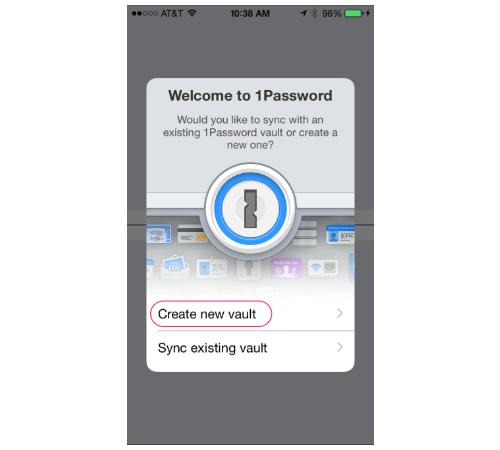
2. When you open the app, it’ll ask you whether you’d like to sync with an existing 1Password account or start a new one. If you’re new to this app, select the latter. Tap Create new vault.
1Password welcome screen
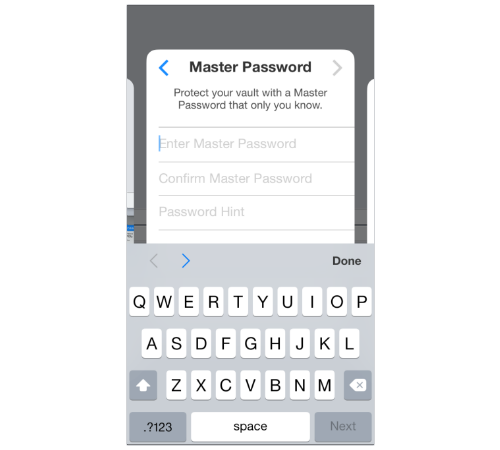
3. You’ll then be prompted to enter a Master Password, which is the one phrase that you’ll need to access all the other passwords you store. I know, I know: You’re probably already feeling password fatigue. But make a real effort here: Make it complex, long, and unique. Treat this one as the most important password you’ll have, because it will hold the key to all your other passwords. I’d recommend that you create a string of lower- and uppercase characters with a few symbols and numbers mixed in. Please don’t make it one of these.
1Password Master Password screen
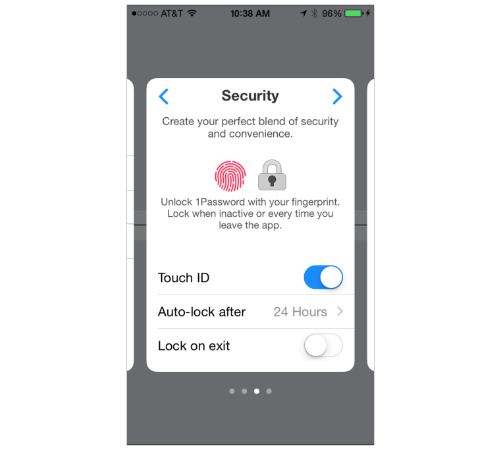
4. Here’s the exciting part! You can enable your iPhone’s fingerprint scanner to unlock 1Password whenever you open the app. This way you don’t have to type in that super-difficult password you created just a few seconds ago every time you want to log in to something.
1Password Security screen
You can always adjust or expand these settings by heading to the app’s Settings section and navigating to Security → Touch ID.
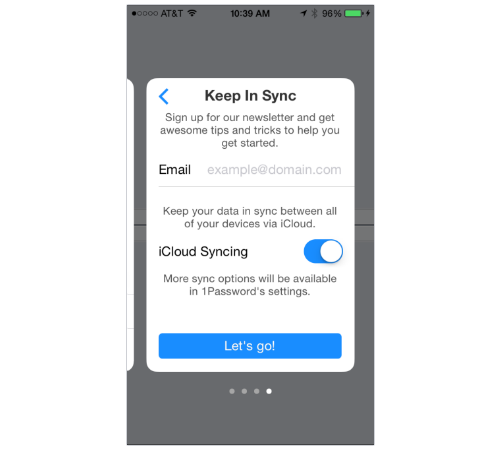
5. Next comes a prompt to sign up for 1Password’s newsletter, but that’s not necessary. You’ll also be given a choice of whether you’d like to sync your data via iCloud (this may take a few seconds). If you use Dropbox or another cloud storage service, skip this step. You can always add those accounts later. When you’re ready to begin, tap Let’s go! (1Password’s exclamation point, not mine).
1Password Keep In Sync screen
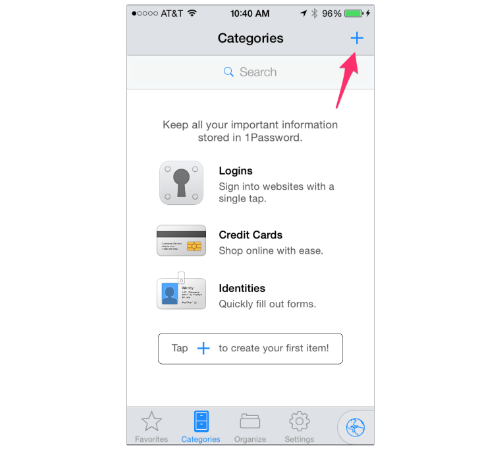
6. You’ll be brought to a Categories page. This is where you’ll be able to create and organize your many digital accounts, credit card information, and form fodder. To create your first one, tap the + button in the upper-right corner of the screen.
1Password Categories screen
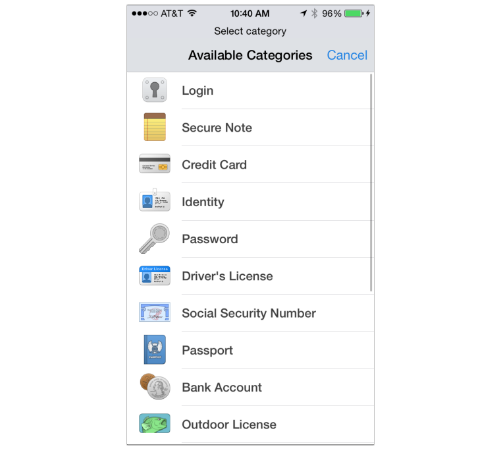
7. Whenever you want to enter a new piece of information into the vault, you must first categorize it. I’m guessing you’ll be using this tool primarily for log-ins, so let’s start there. Tap Login.
1Password Available Categories screen
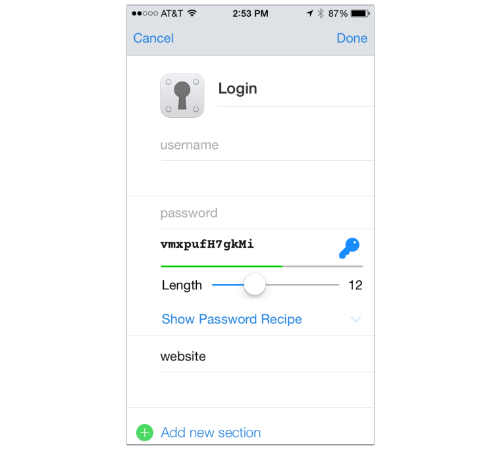
8. You’ll be asked to name the account and type in your username. Below that, there’ll be an auto-generated password.
1Password log-in
The idea here being that if this is a brand-new account, you can automatically use this ultra-strong password to access it. Chances are, however, that you’ve already established log-in information for sites like Facebook and Amazon. It might be safer to change your password to a random string of letters and numbers, but that involves actually logging into the website in question and resetting that info. If you’d rather not do that right now, simply delete that section and type in your password for that service.
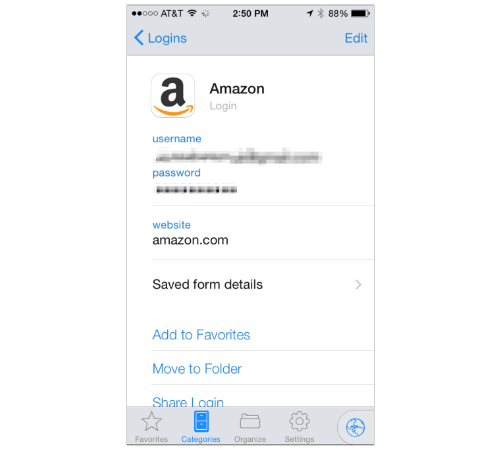
Below that, you’ll see a place to enter the name of the site this log-in works for. You can type something like “Amazon.com,” and 1Password will automatically generate the company’s symbol in the log-in profile.
1Password Amazon log-in
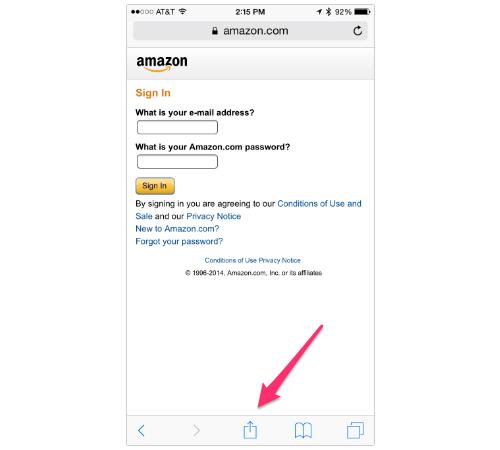
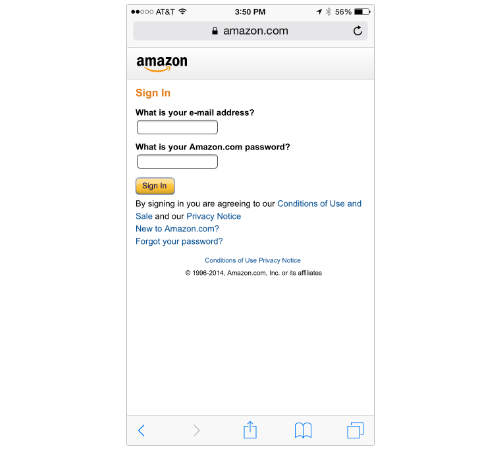
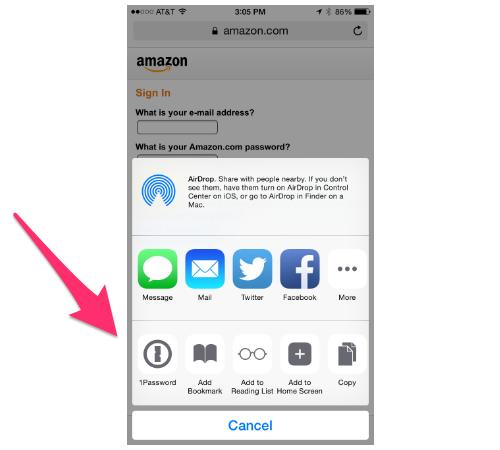
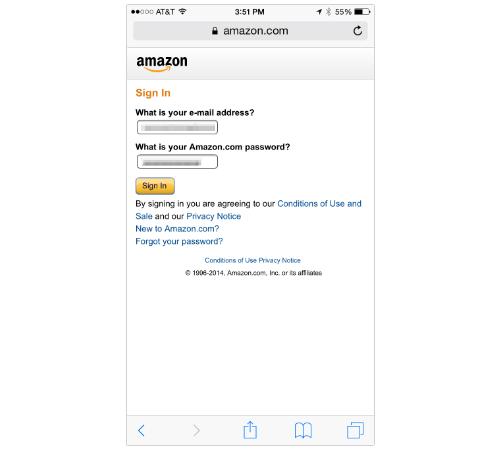
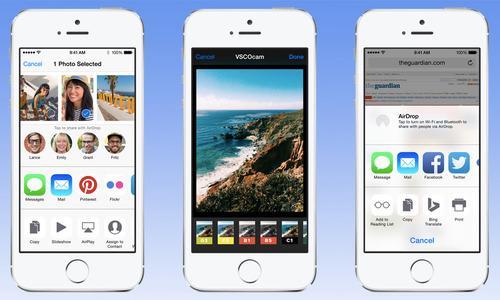
Don’t celebrate just yet — you’re far from done. Next up, you’ll need to open up Safari and tap the Share button at the bottom of the screen.
Amazon sign-in screen
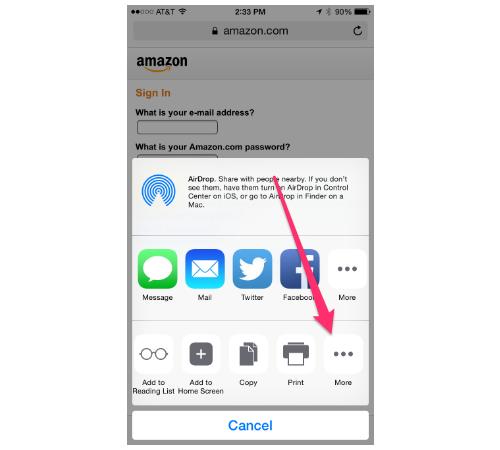
Swipe left over the lowest tier of icons all in gray until you see the More icon. Tap it.
iPhone 6 AirDrop sharing screen
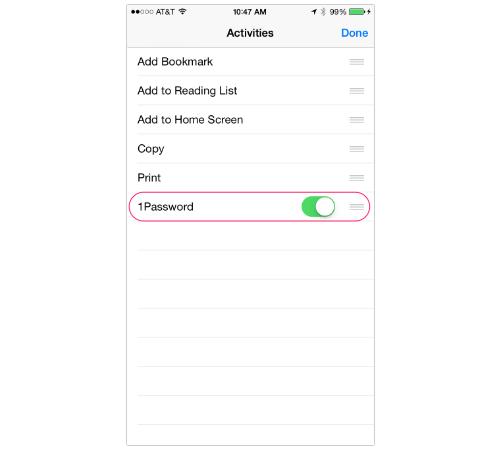
10. You’ll see a page titled Activities. At the very bottom of it, there’ll be an option to enable 1Password.
iPhone 6 Activities screen
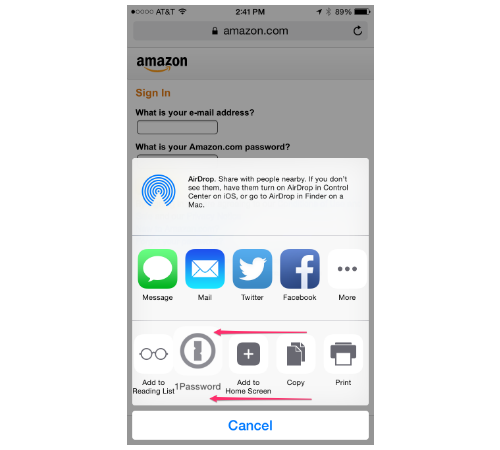
11. When you’re done, go back to the share options. The 1Password icon should now show up in your choices. If you don’t want it to be so hidden, then simply hold your finger on the app icon and drag it to the left.
iPhone 6 AirDrop sharing screen
Phew; now you’ll never have to do that again. Good riddance.
12. It’s time to go to a website you’d like to log in to. For this to work, you have to have first created a log-in profile for this site within the app, obviously.
Amazon sign-in screen
Tap the Share button and select the 1Password icon.
iPhone 6 AirDrop sharing screen
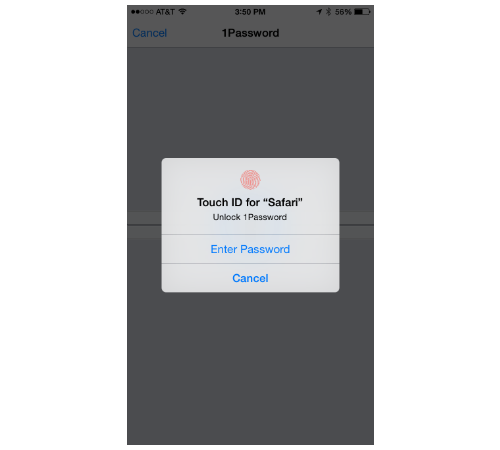
The 1Password vault will show up. At this point, you can either enter your master password or hold your finger down on the home button for Touch ID.
iPhone 6 Touch ID screen
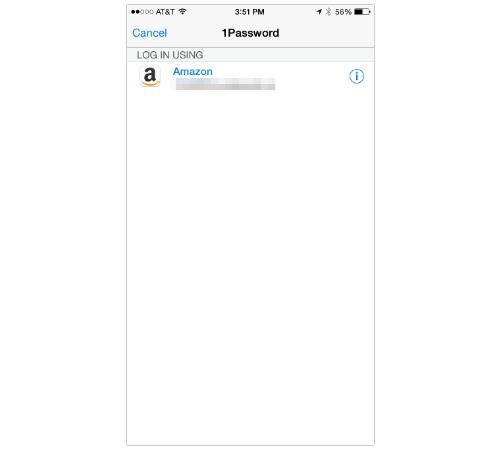
13. 1Password will automatically analyze what website you’re on and generate the best log-in option. In this case, it automatically recognizes Amazon. Tap the name.
Logging into Amazon with 1Password
14. Your login information will load, and then you’ll have to tap whatever Sign In button the site provides.
Amazon sign-in screen
And now you’re done. Well, sort of. You’ll need to create profiles for every other log-in or credit card you feel like having on hand. Needless to say, this is a project you might have to set aside some time for (or, for the advanced user, you can synchronize your mobile version of 1Password with the copy running on your Mac or PC).
It takes a while, but in the long run it’ll be worth it.

Read More

Thursday, 25 September 2014

// // Leave a Comment

Apple Releases iOS 8 ‘Fix,’ but Users Report Major Problems with Update

Apple Releases iOS 8 ‘Fix,’ but Users Report Major Problems with Update

One week after the launch of iOS 8, Apple has already released its first update for the new OS in iOS 8.0.1, which contains a slew of bug fixes.
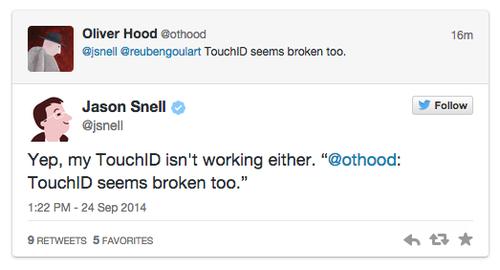
But you shouldn’t hit the Install button yet. Soon after the update hit, an abnormally high number of users immediately started reporting that the iOS 8.0.1 update is breaking cellular reception and other features like TouchID. For those affected, “No service” is displayed after the update has been installed, and toggling Airplane Mode or powering the phone off and on again doesn’t seem to be fixing it. We’ve reached out to Apple for comment on the situation.
image
According to the company’s release notes, iOS 8.0.1 was intended to fix numerous problems, including an issue that held back HealthKit apps last week. iOS 8.0.1 also patches up issues with third-party keyboards, a bug that prevented some apps from getting at the photo library, reliability around Apple’s Reachability feature, and more. The full changelog follows below. To install the update on your iPhone or iPad, just head into settings. This one shouldn’t require as much space as the original iOS 8 release.
• Fixes a bug so HealthKit apps can now be made available on the App Store
• Addresses an issue where third-party keyboards could become deselected when a user enters their passcode
• Fixes an issue that prevented some apps from accessing photos from the Photo Library
• Improves the reliability of the Reachability feature on iPhone 6 and iPhone 6 Plus
• Fixes an issue that could cause unexpected cellular data usage when receiving SMS/MMS messages
• Better support of Ask To Buy for Family Sharing for In-App Purchases
• Fixes an issue where ringtones were sometimes not restored from iCloud backups
• Fixes a bug that prevented uploading photos and videos from Safari
Read More

Sunday, 21 September 2014

// // Leave a Comment

13 Gems in iOS 8: Dave’s Faves

iOS 8 is a teeming mass of code, a carefully crafted cornucopia of new features. Some, Apple has marketed to the skies. Others are quiet touchups that you’ll just stumble upon.
You can read about some of the buried treasures in our story here. But right here, on one handy page, are 13 more. You might call them Dave’s Faves.
1. Send the most recent photo.When you’re texting someone, and you want to send a photo, which photo are you most likely to want to send?
Why, the last one you took, of course. Or at least one of the last few. iOS 8 realizes that and saves you the hassle of burrowing through all your photos and albums to find it.
13 Gems in iOS 8: Dave’s Faves
Where to find it: When you’re in Messages, tap the Camera icon. BOOM: The last few photos you’ve taken or imported are right there in front of you. Scroll to the left to see more of them, going back in time. Tap the one you want, and then tap Send 1 Photo. (Actually, you can tap more than one, if you want.)
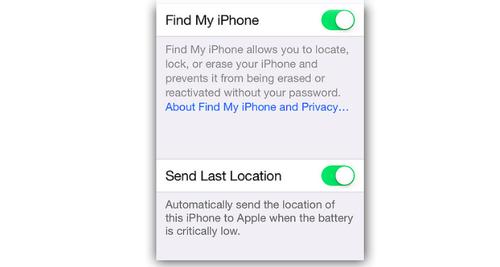
2. Last known location.Your battery dies. You can’t find your phone. Now what? You can’t use Find My iPhone if your phone is lying dead under a couch at a neighbor’s house, because that feature used to work only when your phone could respond.
Thanks to this update, you now have a prayer of finding your phone again. Before it dies, your phone will send Apple its location. You have 24 hours to log in to iCloud.com and use the Find My iPhone feature to see where it was at the time of death. (After that, Apple deletes the location information.) 
Find My iPhone setting
Where to find it: Open Settings → iCloud → Find My iPhone. Turn on both Find My iPhone and Send Last Location.
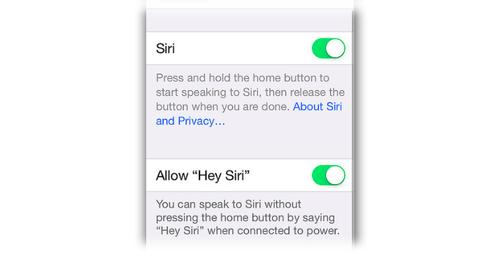
3. Hands-free Siri.Apple is keeping up with the Joneses — or, rather, the Motos. Now you can command Siri without having to hold down the home button. Just say “Hey, Siri” to get her attention — and then speak your command.
This trick is especially good when you’re driving. If you must use your phone, doing so without looking at it or touching it is the best way. 
The feature works only when your phone is plugged in to power, though.
Siri settings screen
Where to find it: Open Settings → General → Siri. Turn on Hey Siri.
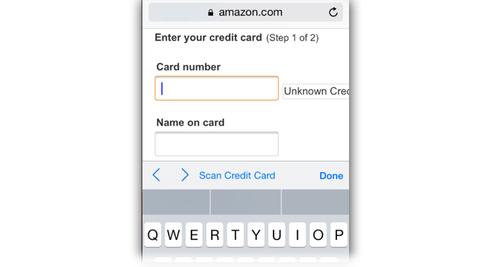
4. Scan my credit card.The iCloud Keychain feature can already store your credit card information, address info, and other details, so you don’t have to painstakingly type it into every website where you buy something. But now it’s super easy to store your credit card information in the first place.
iPhone Enter Your Credit Card screen
Where to find it: At the moment you’re asked for your credit card number (on a website), the Safari browser’s keyboard sprouts a new button that says Scan Credit Card. Aim your phone/tablet’s camera at your credit card and take a picture; Safari analyzes the photo and converts the numbers to text. (As always, you still have to manually enter the four-digit security code every time you buy something — an extra layer of security.)
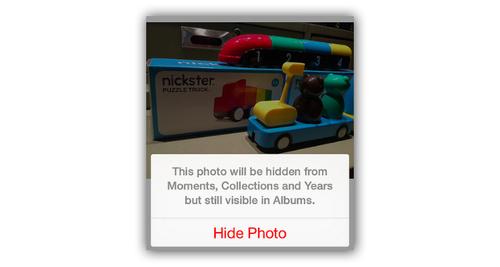
5. Hide my photos.Not all of your photos, ahem, are meant for public consumption. So in iOS 8, for the first time, you can hide photos and videos within the Photos app.
iPhone Hide Photo screen
Where to find it: Hold your finger down on a photo. In the shortcut menu, tap Hide. Confirm by tapping Hide Photo. (Your hidden stuff is, for some reason, still visible in its original album — in Albums view. It’s hidden only from the Moments, Collections, and Years groupings.)
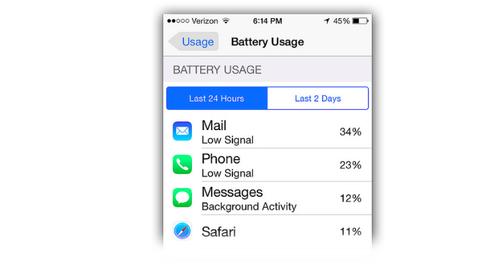
6. Sleuth out the battery gluttons.Now you can see which apps are responsible for sucking down your battery power. That’s an incredible help if you’re frustrated by short battery life.
Where to find it: Open Settings → General → Usage → Battery Usage. Wait patiently.
iPhone Battery Usage screen
(Note, in this shot, the Low Signal notation indicates that your phone blew through a lot of power trying to reach the Internet to get your mail or a cellular signal when there wasn’t much signal.)
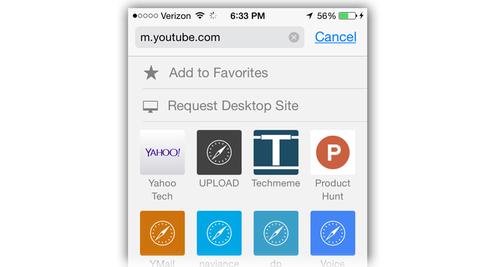
7. Load the full website (instead of the mobile version).In an effort to conserve time and bandwidth (yours and theirs), many websites are available in special mobile versions — smaller, stripped-down sites that transfer faster than (but lack some features of) the full-blown sites. You generally have no control over which version you’re sent.
Until now, that is. In iOS 8, you can request the full-blown site if the mobile one isn’t quite cutting it for you.
Request Desktop Site button on iPhone
Where to find it: Suppose you’re in the Safari browser and some site has dished up its mobile version, and you’re gnashing your teeth.
Tap in the address box, and then swipe downward on the screen. A button called Request Desktop Site appears; tap it.
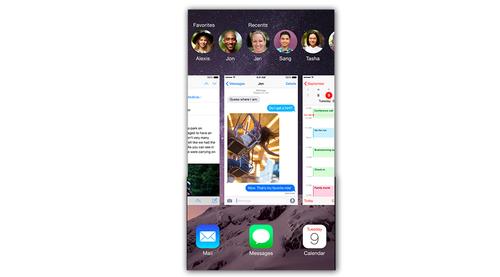
8. Quick access to your VIPs.Next time you want to reach someone — call, text, FaceTime — don’t fumble for the Contacts or Phone apps. Use the new feature that presents the headshots of the people you’ve communicated with most recently; and, to their right, the icons for people you’ve listed on your Favorites screen.
Where to find it: You can use this trick anywhere, from within any app. Double-press the home button, as though you want to open the app switcher. There, at the top of the screen, are the new headshots. Tap one to make it expand into icons for the various comm channels: Phone, Message, FaceTime Audio, and so on.
iPhone Favorites screen
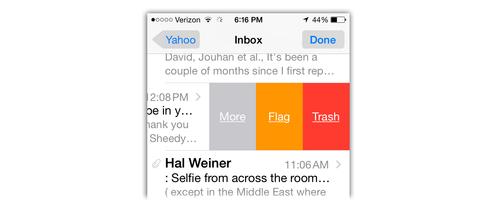
9. Delete email faster.In your list of messages, one gesture, not two, can delete a message.
Where to find it: Swipe leftward. Halfway across the screen, you’ll see the More, Flag, and Trash buttons. You can tap one of those, if you’re so inclined.
iOS 8 changes to Mail app
But if you swipe fully across the screen, you trash the message — no muss, no fuss.
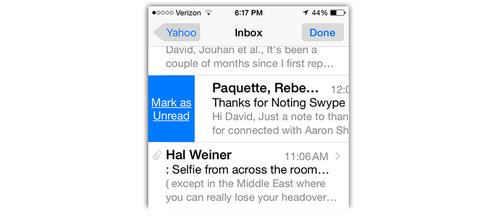
Bonus tip: If you drag a message you’ve already read to the right, you get a Mark As Unread button. Wild.
Mail updates in iOS 8
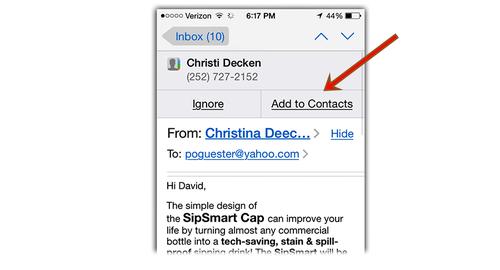
10. Take Mail’s hint.If Mail spots a name, number, flight, or date in the body of an email message (for example, the block of contact info in somebody’s signature), it thoughtfully offers to record that detail into the appropriate app. For example, it can stash a new correspondent’s contact info into your Contacts with one tap, or add an appointment to your Calendar.
Mail updates in iOS
Where to find it: It’s automatic. Open any message where somebody has included contact, appointment, or flight information. Tap Add to Contacts or Add to Calendar.
11. Much, much better dictation.The phone’s ability to turn your spoken dictation into typed text has always been a source of frustration (and not just on the iPhone). Well, this time around, Apple has done something about it.
When you dictate, you’ll notice, first of all, that the words appear as you say them (like on Android). No more staring at a blank screen, wondering if and when you’re going to get a transcription.
(But doesn’t Siri need the context of the entire sentence before it knows what words you’ve said? Yes. That’s why, often, you’ll see words change before your eyes, after they’ve already been heard. That’s Siri reconsidering what you meant, based on the full passage.)
You’ll notice much better transcriptions overall — especially if you have an accent.
Where to find it: Anywhere you can type. Tap the microphone icon at the bottom of the onscreen keyboard.
12. The predictive words row.From the BlackBerry and other phones, iOS 8 adopts a new way to speed up typing. There’s a row of three candidate words above the keyboard. They change as you type — and they get smarter and smarter the more you use it. In fact, the phone learns different predictive vocabulary in email and texting, since you probably use a different style in each of those contexts.
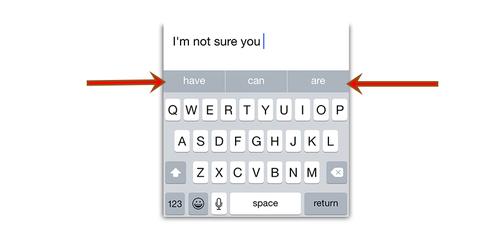
Predictive text in iOS 8 Messages appWhen you first start typing, these suggestions include “I,” “The, and “I’m” — the three most common words to begin messages.
Suppose, for example, that you want to type: “I’m sorry, but I can’t find it anywhere.” Here’s a blow-by-blow look at how the suggestions change as you type. (Left column: What you do. Right column: How the three predictive words have changed.) You use a combination of typing letters and tapping full words to save time:
Total taps: 14. If you had typed it on the old keyboard, it would have been 32 taps.
(Notice how iOS 8 adds or removes spaces correctly, even when you put in a comma.)
13. Learn your own darned tips.There’s a new app called Tips. Open it to read a set of tips, which Apple will periodically update, that let you know about great little iOS 8 features like the ones described here.
Tips app
David Pogue is hard at work on iPhone: The Missing Manual, Eighth Edition.Get his columns sent to you by email! Details here. Or subscribe to his weekly videos on our YouTube channel here. Or email him here.
Read More

Saturday, 20 September 2014

// // Leave a Comment

10 Must-Play Games for Your New iPhone 6

Chris Morris
10 Must-Play Games for Your New iPhone 6
Are you one of the lucky ones whose iPhone 6 or iPhone 6 Plus arrived today? Or maybe one of the crazy ones who lined up outside your local Apple Store? Either way, congrats!
Our first tip: Don’t drop it. Our second tip: Get some games that showcase the bigger screen and improved guts. Only a handful have thus far been optimized for the Metal graphics processor — we mention them below — but there are plenty of others that still deserve a spot on your shiny new i-device.

1. Asphalt 8: AirborneThe Asphalt series has always been a looker, jam-packed with spiffy, speedy cars that elicit oohs and aahs from onlookers. Gameloft not only polished up the graphics with its Metal update, but it also tossed in a Metal-exclusive season with three times as many opponents as any other Asphalt game.

DOWNLOAD IT HERE.
2. Epic Zen GardenOK, this isn’t a game, technically. It’s more of a tech demo. But hot damn, is it a pretty one! The developer behind Gears of War and Unreal put together this soothing experience (complete with a koi pond and sand raking) using the same engine that’s being used to power Fable Legends on the Xbox One.
DOWNLOAD IT HERE.
Screenshot from Monument Valley iPhone game
3. Monument ValleyIf M.C. Escher made a video game, this would be it. This winding, brain-warping puzzler routinely ignores gravity and the laws of physics, creating a dreamworld that is positively surreal and drop-dead gorgeous.
DOWNLOAD IT HERE.
4. Plunder PiratesThis free-to-play title from the company behind Angry Birds is cartoonishly goofy, letting you recruit a pirate army and sail your galleon into battle against other players. If you’re familiar with games like Clash of Clans, you get the gist.
DOWNLOAD IT HERE.
5. Monster Hunter Freedom UniteYou want a big game? They don’t come much bigger than this. Capcom’s 2008 PSP and PS Vita game made a big splash in the iOS world with a seemingly endless supply of missions and monsters. Perfect for the bigger screen of the iPhone 6 Plus, but be sure to also grab a Bluetooth gamepad for this one.
DOWNLOAD IT HERE.
Screenshot from Valiant Hearts: The Great War iPhone game
6. Valiant Hearts: The Great WarIt’s not Metal-optimized, but this World War II-themed puzzle/adventure game makes up for that with a terrific, emotional story. It’s just as good as the console version that came out earlier this year — maybe better, since you can take it wherever you go. 
DOWNLOAD IT HERE.
7. 80 DaysA steampunk twist on a Jules Verne tale? Sign us up! Try to recreate Phileas Fogg’s journey around the globe, racing the clock and other players. It’s interactive fiction at its very best. 
DOWNLOAD IT HERE.
Screenshot from Modern Combat 5: Blackout iPhone game
8. Modern Combat 5: BlackoutYeah, it’s a Call of Duty clone, but it’s not a bad one. And with its Metal optimization, you’ll get bigger, better explosions and some seriously impressive weather effects, including a very cool heat haze. Mobile warfare has never been so pretty. 
DOWNLOAD IT HERE.
9. The Room TwoLike its predecessor, this app is atmospheric and brooding. It’s a bit like the classic PC game MYST, featuring challenging puzzles and crisp, beautiful graphics. 
DOWNLOAD IT HERE.
10. VaingloryIt won’t be out until next month, but make a mental note to download this multiplayer online battle arena (MOBA) game ASAP. Apple believed in it enough to make it the gaming focal point of the iPhone 6 announcement. That’s a serious endorsement.
Read More